
Change the environment variables your app runs with after setup, for example when an engineer rotates an API key. Every change is tried on a fresh test environment first, so a value that breaks the app is never saved.
Before you start
A connected codebase that finished setup. See What happens during setup.
Steps
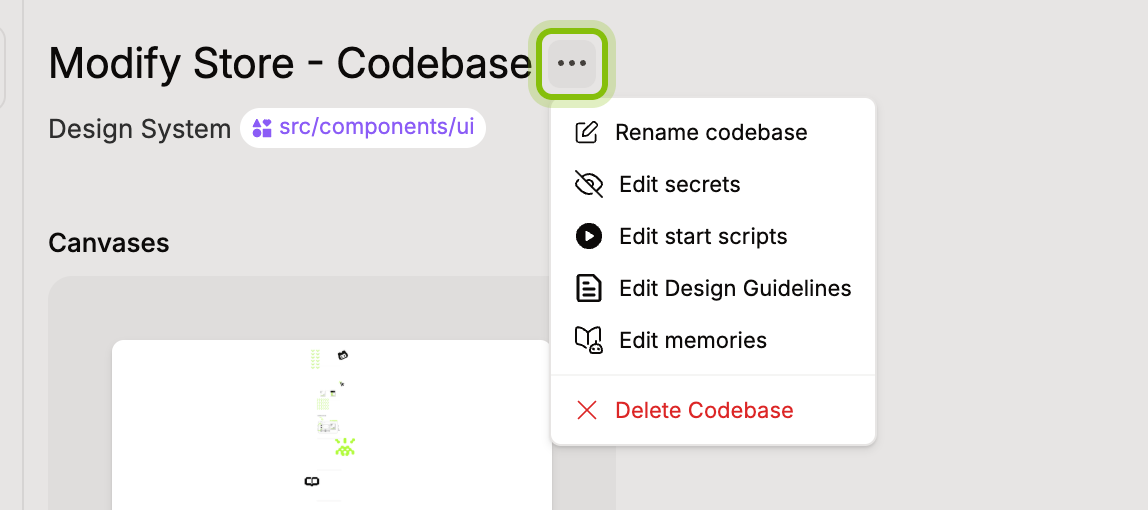
Open the codebase from CODEBASES in the sidebar and click the … button next to its name.
Click Edit secrets. The dialog lists Environment variables with the saved values masked.
Click Add variable and type the name and value. To add many at once, click Paste .env, paste the lines, and click Add variables. To change a saved value, click the pencil next to it. To remove one, click the cross.
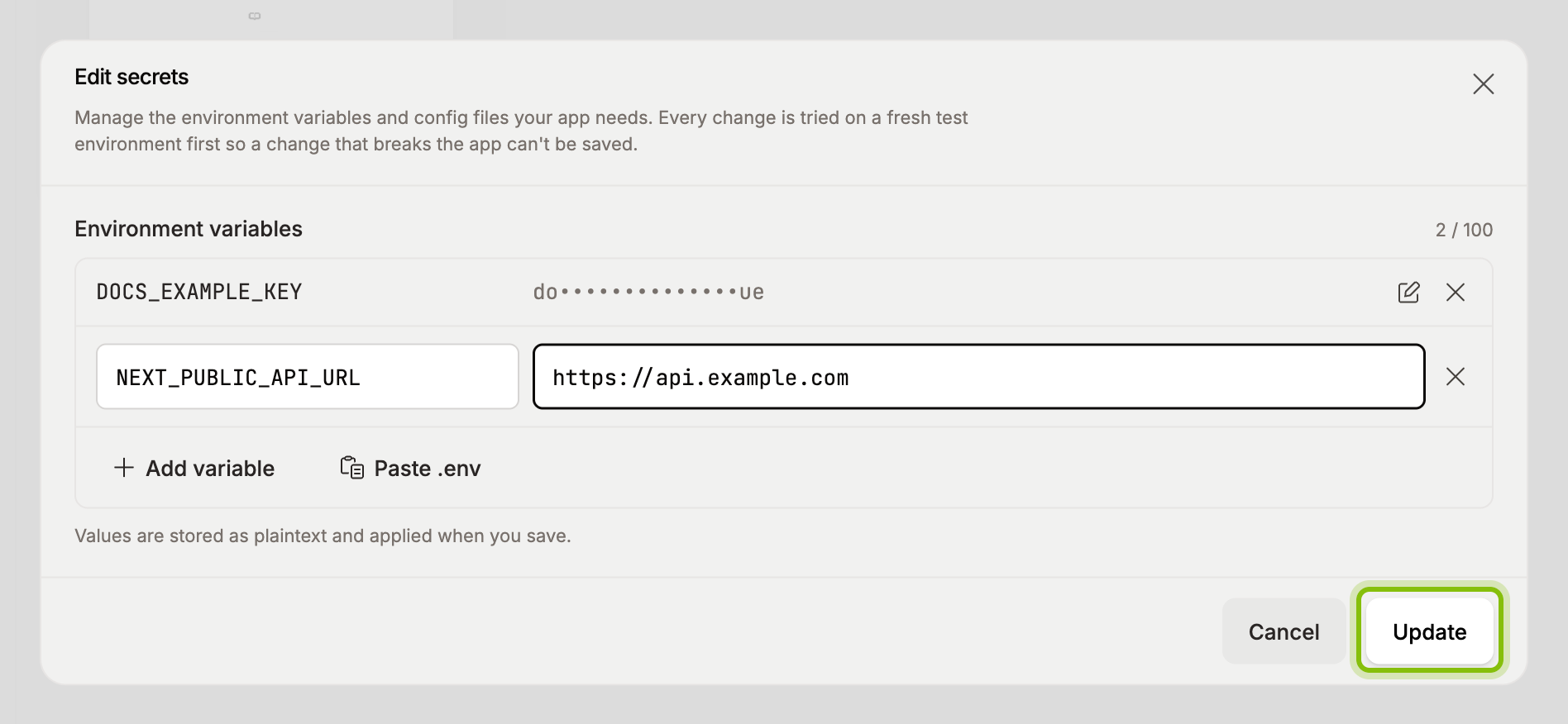
Click Update. The panel Verifying on a fresh sandbox appears while your setup replays with the new values. This usually takes a minute or two, and the dialog stays locked until it finishes.
When the run passes, the dialog closes and the toast Setup config saved confirms it. New canvases start with the new values. A canvas that is already open keeps running with the old ones until its environment starts again.
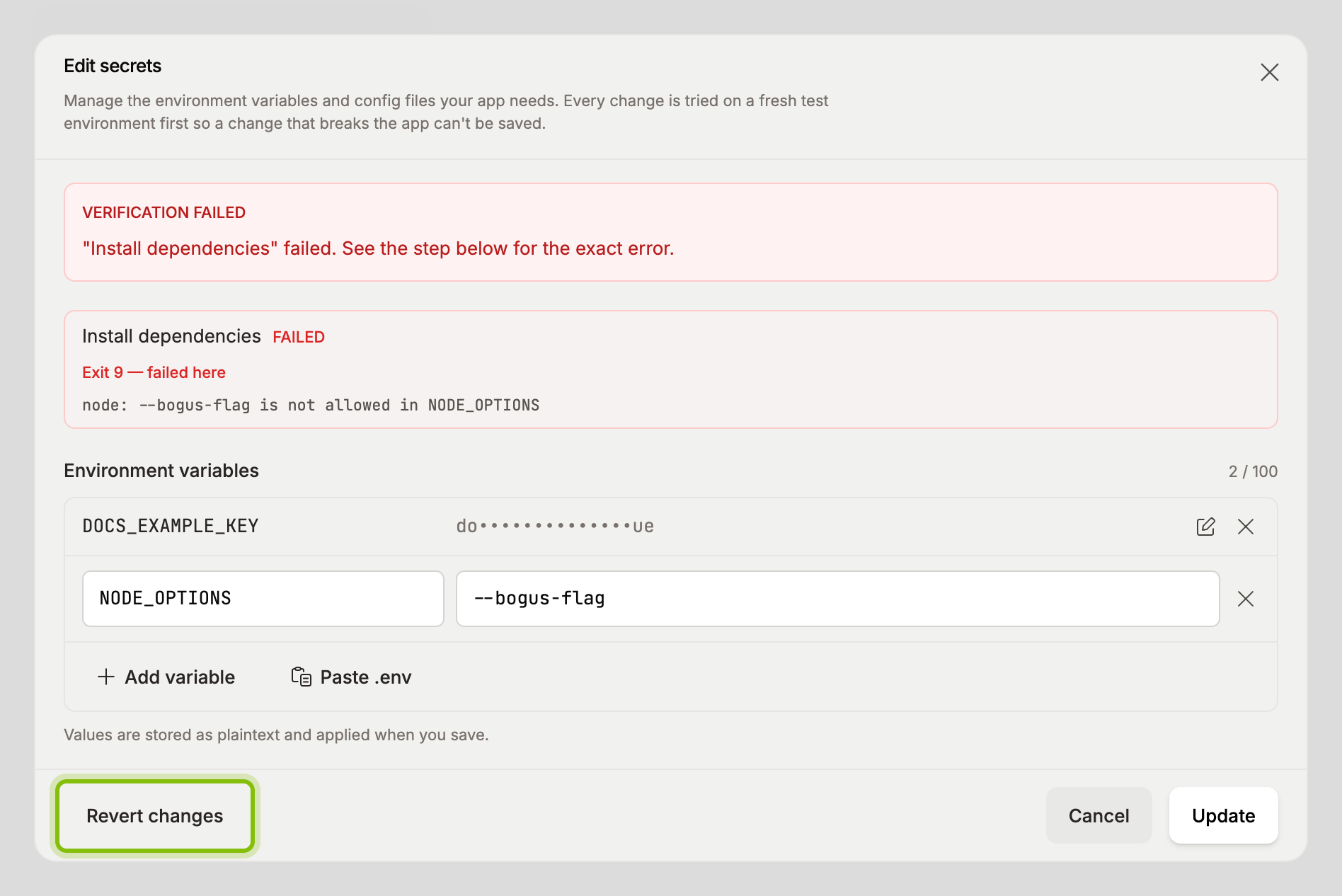
When the run fails, the dialog shows Verification failed with the step that broke and its output. Nothing was saved. Fix the value and click Update again, or click Revert changes to go back to the saved configuration.
The same menu has Rename codebase, which changes the name you see in the sidebar, and Delete Codebase, which deletes the codebase permanently after a confirmation.
If it does not work
A pasted line was skipped: lines without
=, lines without a name, and values that reference another variable with$are listed under the paste box with the reason. Add those by hand with Add variable.Add variable is disabled: a codebase holds up to 100 variables. The counter next to Environment variables shows how many you have.
"Another verification is still running for this codebase": one run at a time per codebase. Wait for it to finish, or close and reopen the dialog to pick it up.
Verification runs past five minutes: a Cancel button appears in the verifying panel after two minutes. The run is also stopped automatically at five, with Verification couldn't finish. Check the value and try again.