
Fix a padding, a font weight or a color on the running page yourself, then let the agent write it into the component. Use it when the change is small enough to point at and a prompt would take longer to write.
Before you start
Build Mode open on the page, see Open Build Mode and move around your app.
Steps
Click the Design button below the message box, or press
⌘ D. The chat makes room for a Design panel that reads "Select an element to edit its styles".Click the element on the stage. It gets an outline, and the panel shows its name at the top with its styles below, in groups: Position, Size, Layout, Appearance, Typography, Fill, Stroke, and Effects. Which groups you see depends on the element.
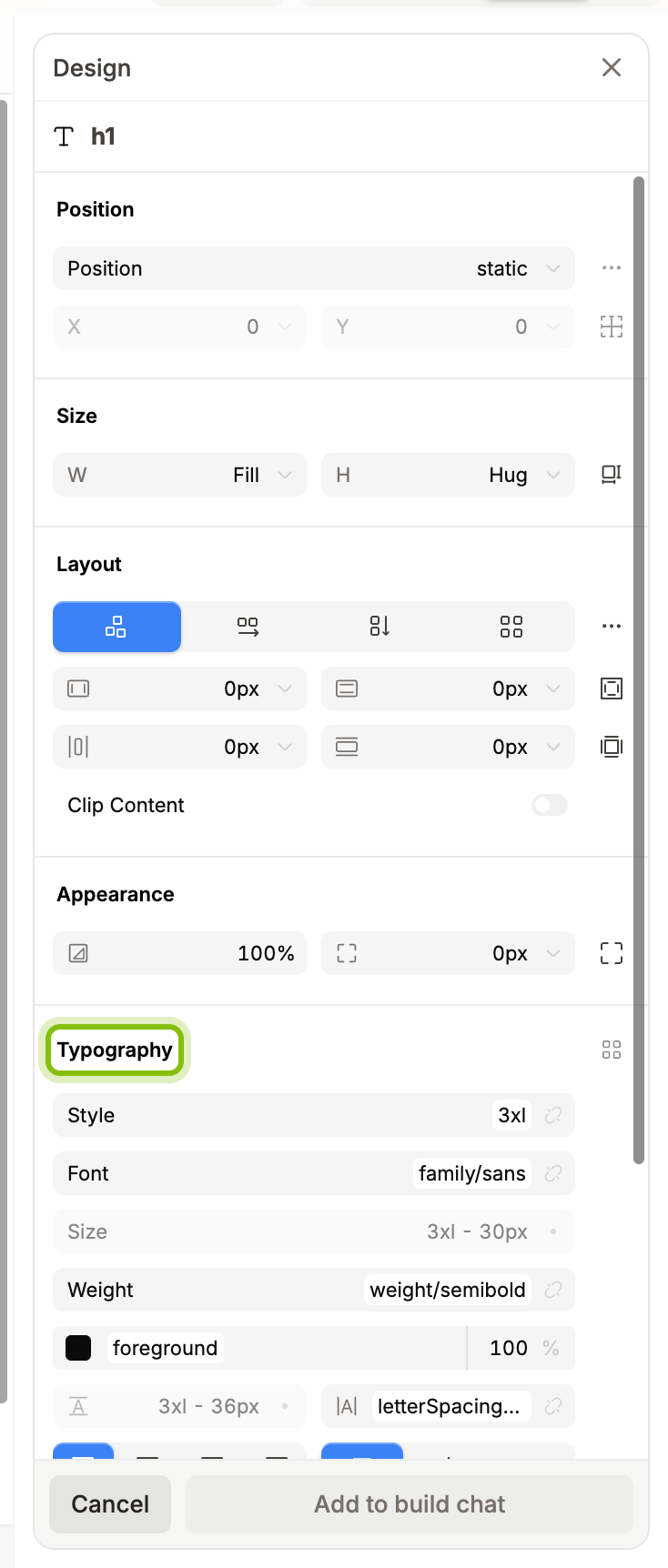
Change a value. A field that shows a token name, such as spacing/4 or weight/bold, is bound to one of your design tokens, see Use your design tokens on the canvas. Click it to open the token menu, search, and pick another token. To type a value instead, double-click the field, type, and press
Enter.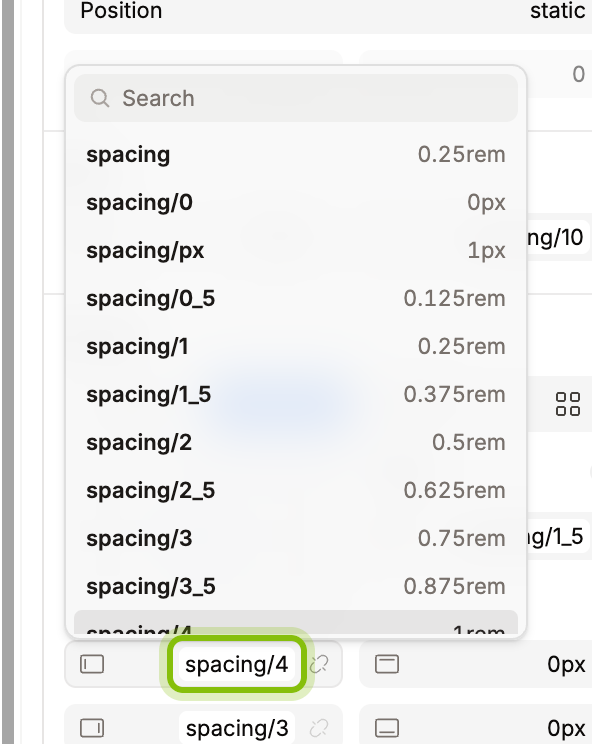
Make the other edits you want, on this element or another one. The stage shows every edit at once, but nothing is in the code yet.
Click Add to build chat. The panel closes, and a card above the message box lists each element with the properties you changed, old value to new value.
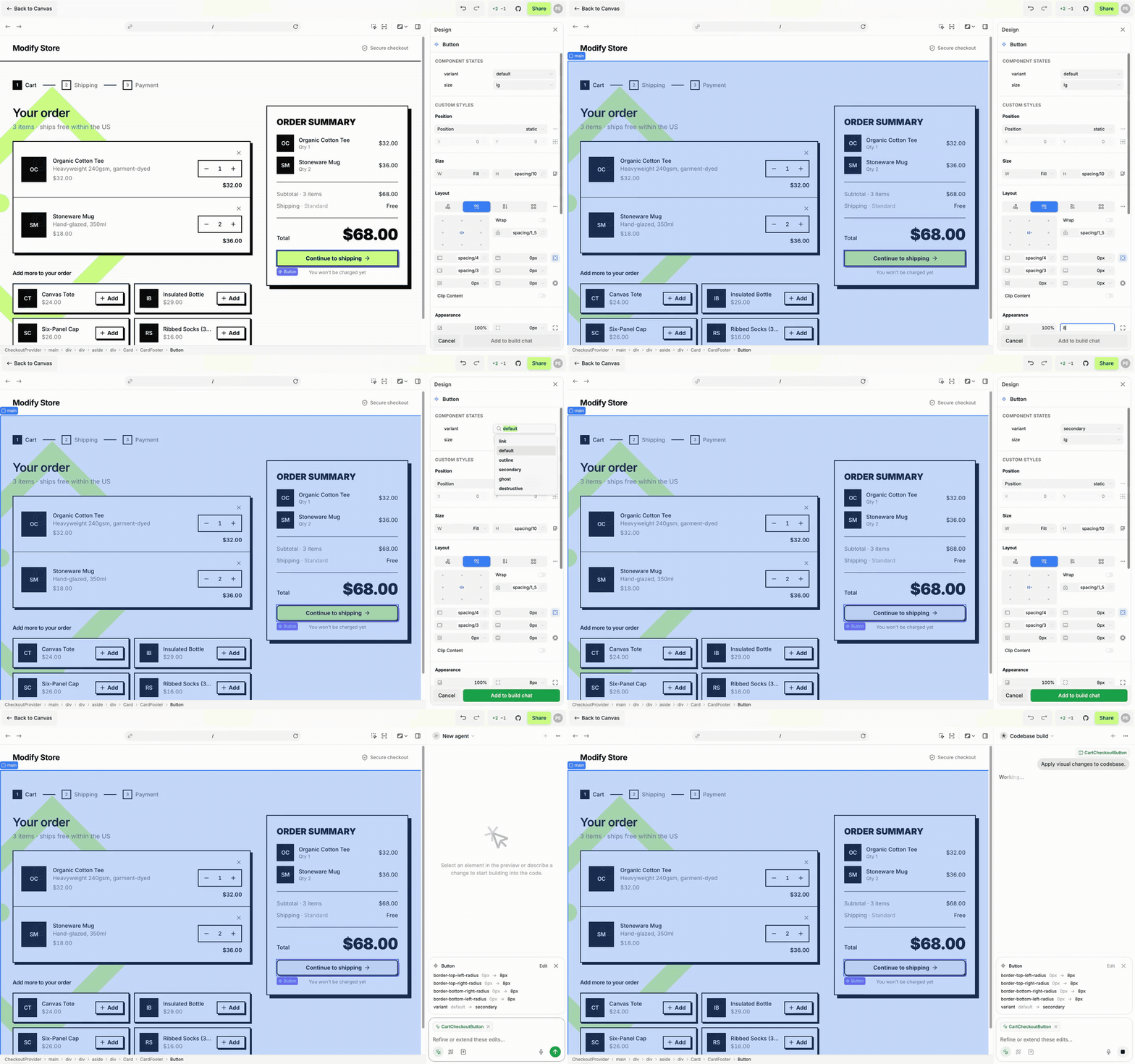
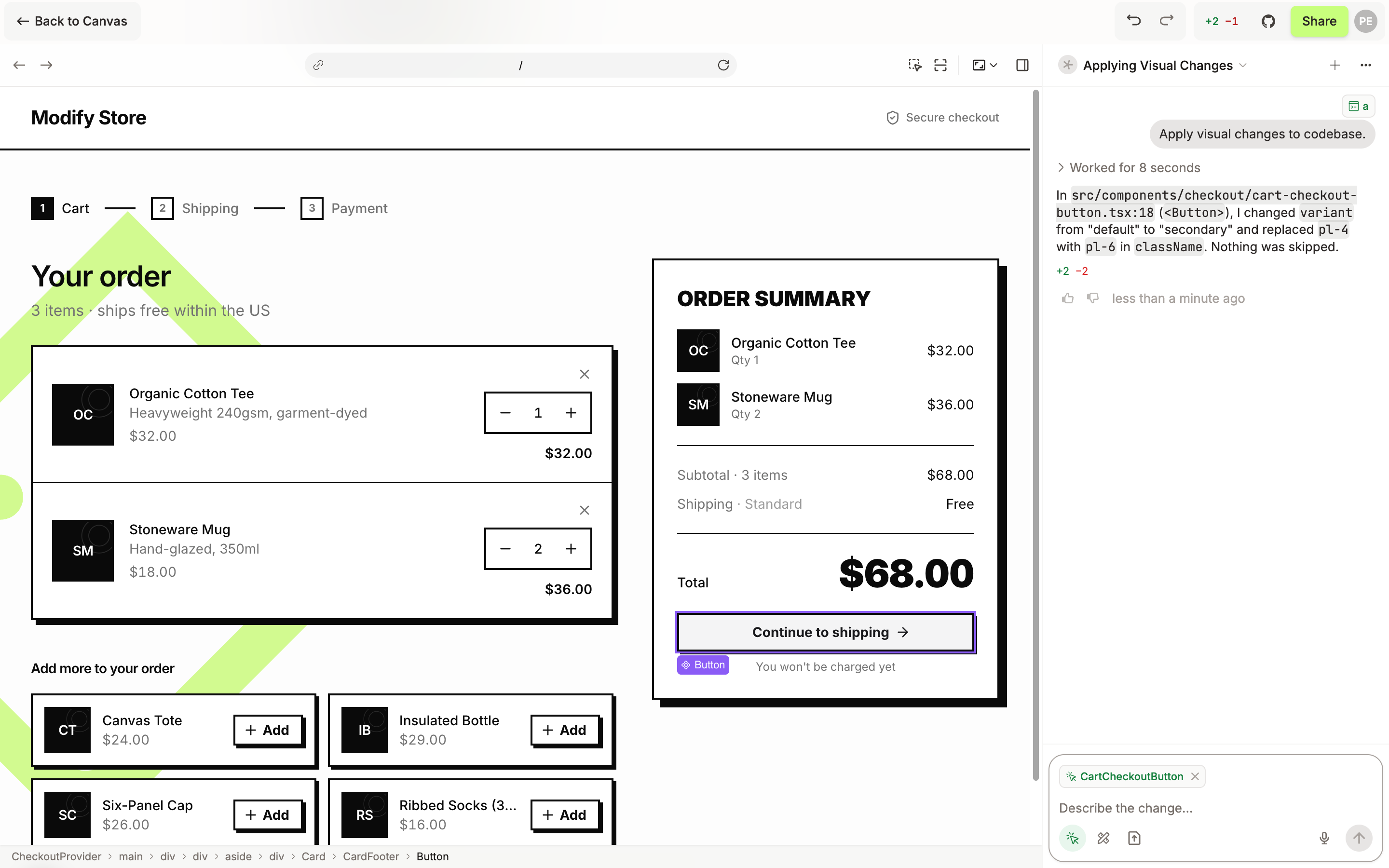
Click Send with the message box empty. The chat shows "Apply visual changes to codebase.", and the agent edits the source file. Or type what else should change and send that with the edits.
The reply names the file and shows how many lines changed, and the page on the stage reloads with the change. A token becomes the class your codebase has for it.
Change your mind
In the card, Edit reopens the panel on the element. Discard edit, the ✕ next to an element, drops its edits, and the stage goes back to the code.
Cancel in the panel drops the edits you made since you opened it.
Esccloses the panel the same way. Edits already in the card stay.
If it does not work
The reply says the edit was skipped because it has no source location: the element was sent before Modeinspect had found its place in the code. Select the element again, wait a moment, and send the edit again.