A new canvas opens on a running copy of your codebase, with one Portal showing your app. Create one for each task, so a redesign and a quick fix do not share a canvas.
Before you start
A codebase whose setup has finished. It is listed under CODEBASES in the sidebar.
Steps
Click the codebase under CODEBASES. Its page lists the canvases it already has under Canvases.
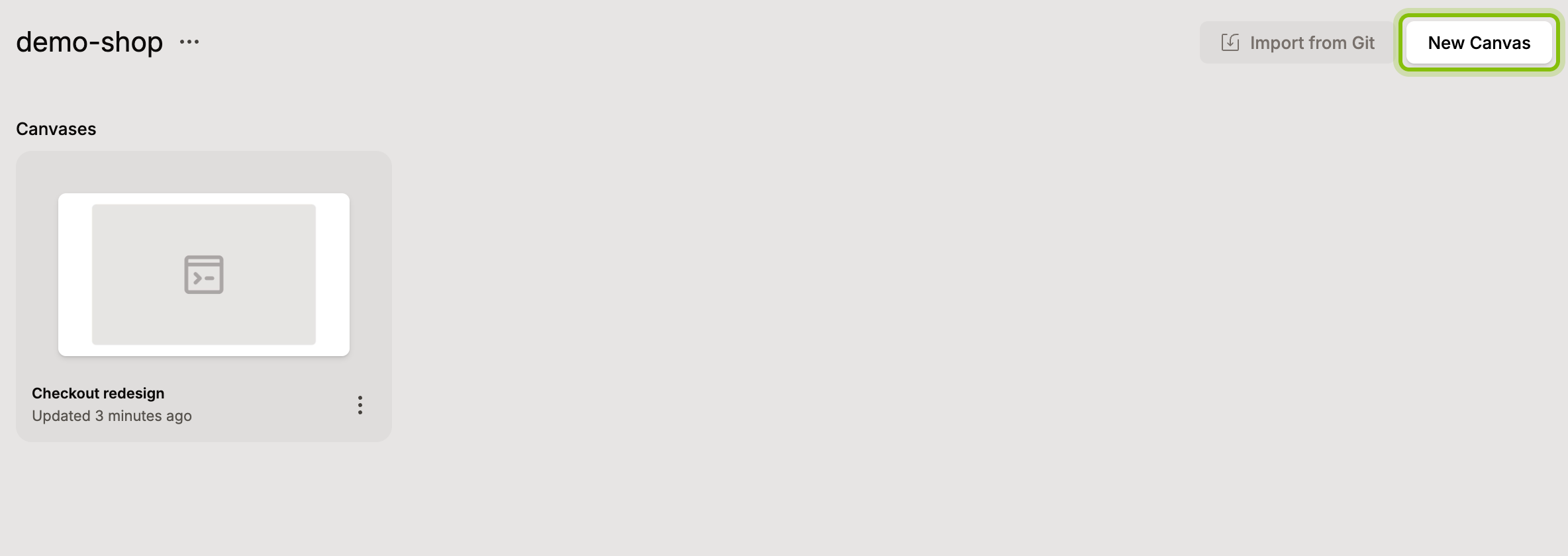
Click New Canvas. The canvas opens, named Untitled, with a Portal named Codebase that shows your app.
Give it a name from its card, see Rename, duplicate and delete canvases. For moving around the new canvas, see Canvas controls and keyboard shortcuts.
Start without opening the codebase page
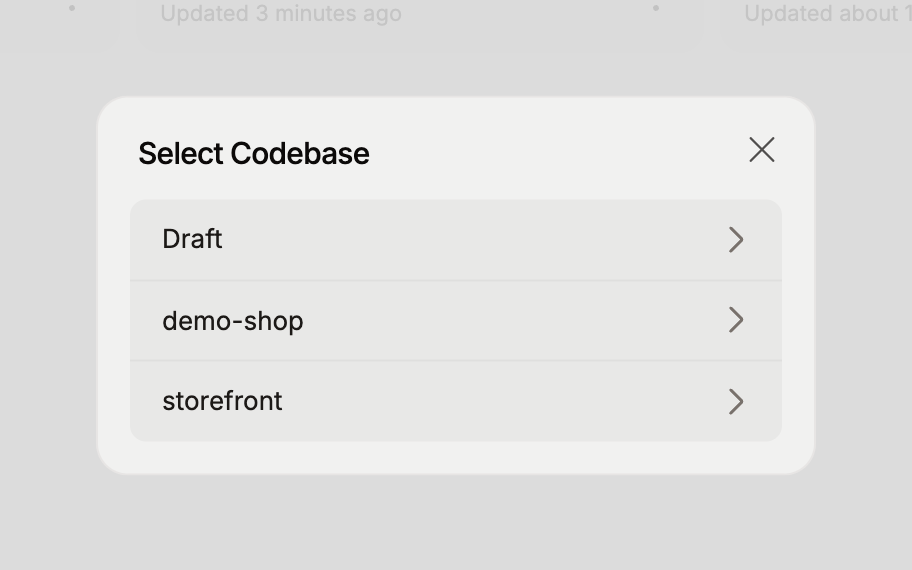
New Canvas is also on Home and My work. With more than one codebase, Select Codebase asks which one to use: click its name and the canvas opens. With a single codebase, the canvas opens straight away.
Where to find a canvas later
Home lists the ten most recently edited canvases in your organization under Recent.
My work lists the ten canvases you created and edited most recently.
The codebase page lists every canvas of that codebase, latest edit first.
Drafts lists canvases without a repository behind them, see Start from a blank codebase.
Every card shows the canvas name and when it was last updated. Click the card to open the canvas.
If it does not work
The codebase is not under CODEBASES: its setup has not finished. See What happens during setup.
The demo codebase is not in Select Codebase: new canvases go on codebases you connected. For a fresh copy of the demo canvas, duplicate it from its card on Home.