
Place one of your codebase's components on the canvas as an instance, with its real styles, and switch its variant from the design panel. Use it when a design should carry the product's own button or card rather than a redrawn copy.
Before you start
A canvas of a codebase whose setup detected a design system. The codebase page shows Design System with a badge when it did.
Steps
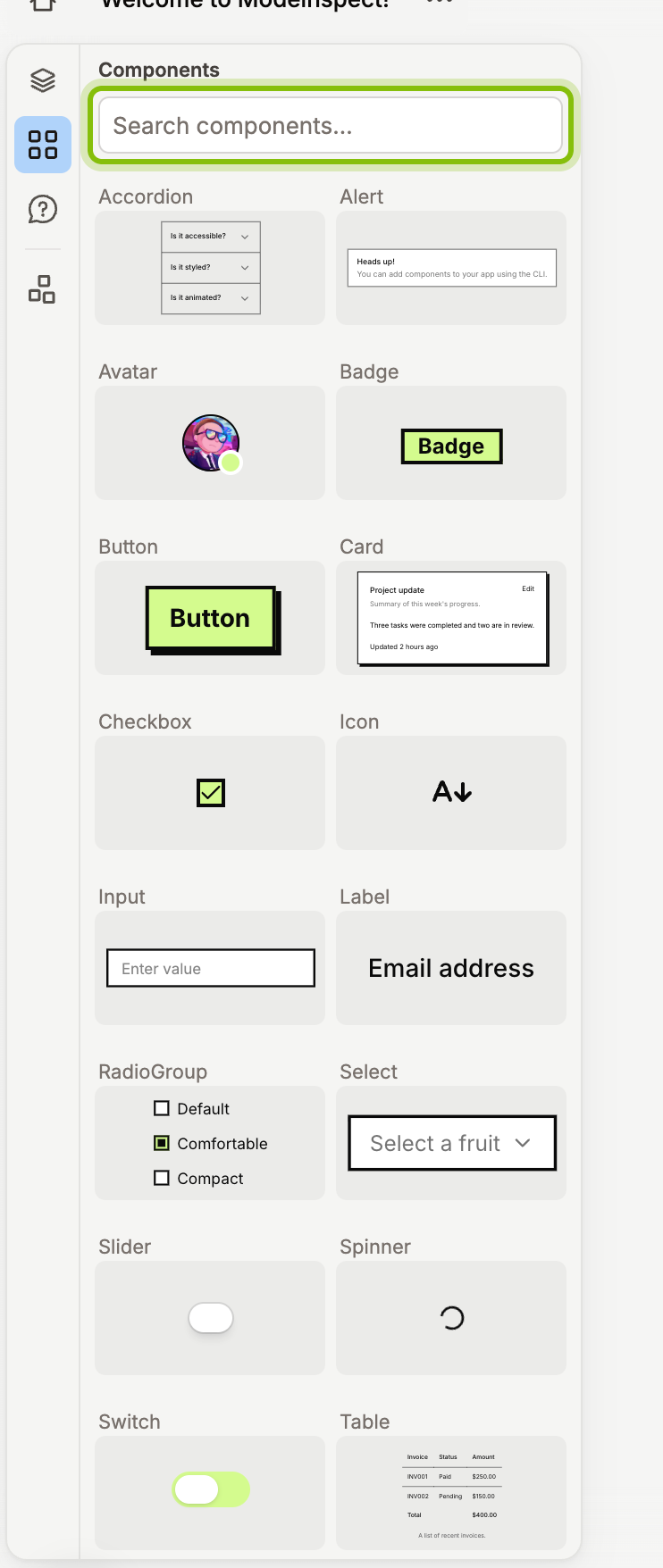
Click the Components tab in the left rail. The panel lists one tile per component, sorted by name, each showing its default variant. Type part of a name in Search components… to narrow the list.
Drag a tile onto the canvas and release. The instance lands where you drop it. Releasing over the panel cancels the drop.
With the instance selected, open Component States at the top of the design panel and choose a variant. Props with a fixed set of values show as a menu, on and off props as a switch.
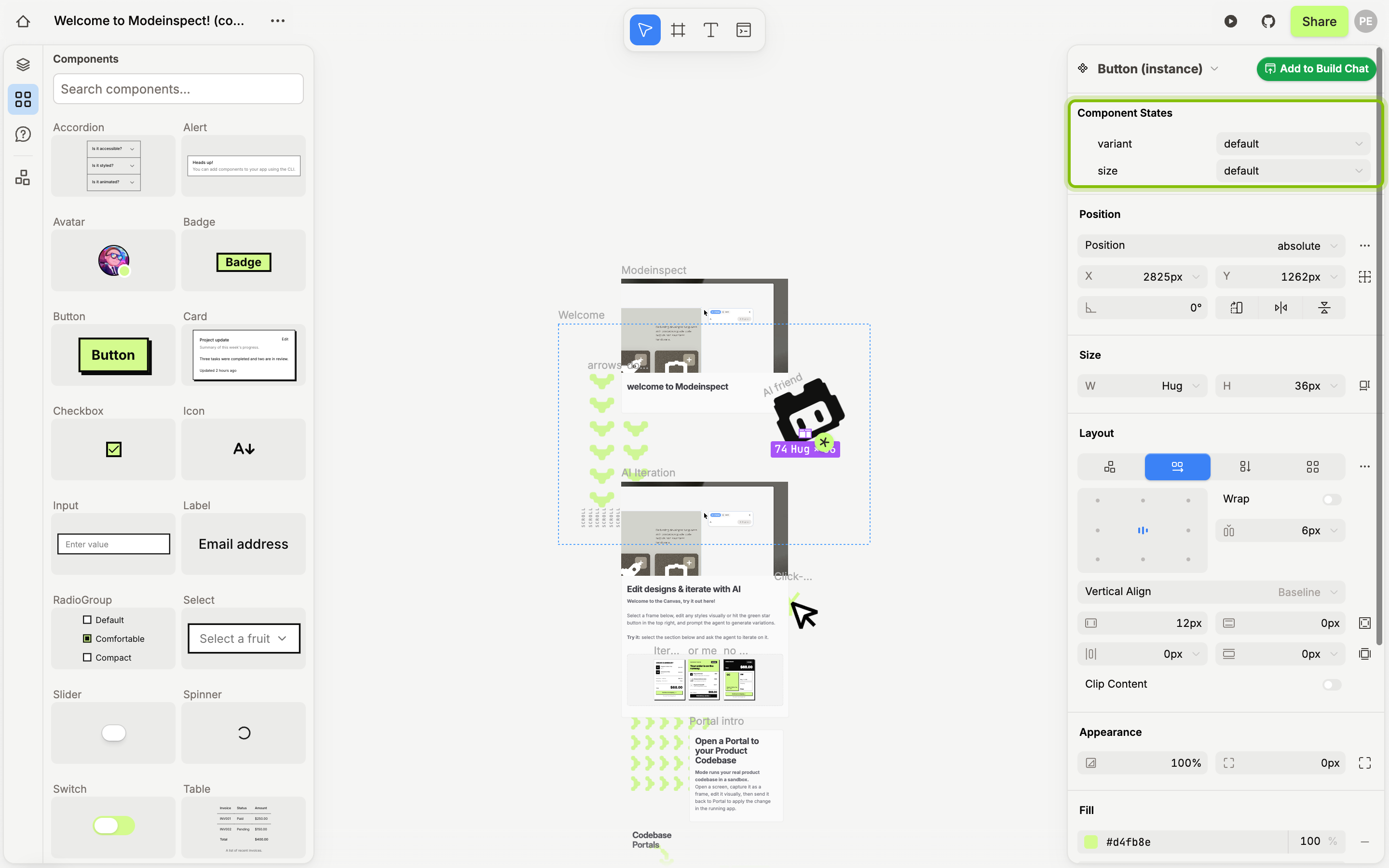
The instance stays linked to its component, and the panel header names it, for example Button (instance). The small arrow next to that name offers Swap instance to replace it with another component and Detach instance to turn it into plain layers. The agent treats a placed instance as that component when it builds, and when it designs on this canvas it reaches for your components before drawing its own.
In Build Mode, the same props appear in the design panel as Component states.
If it does not work
No components detected in the codebase.: setup found no component library in this codebase, so there is nothing to place. Check the codebase page for the Design System badge.
Loading components from codebase… does not go away: setup is still reading the codebase. Come back when the codebase page shows it finished.
No components match “…”: clear Search components…. The search matches the component's name only.