Capture a screen from a Portal, change it on the canvas, and send it to the build chat. The agent writes your changes into the component the capture came from, and the page in Build Mode shows the result.
How it fits
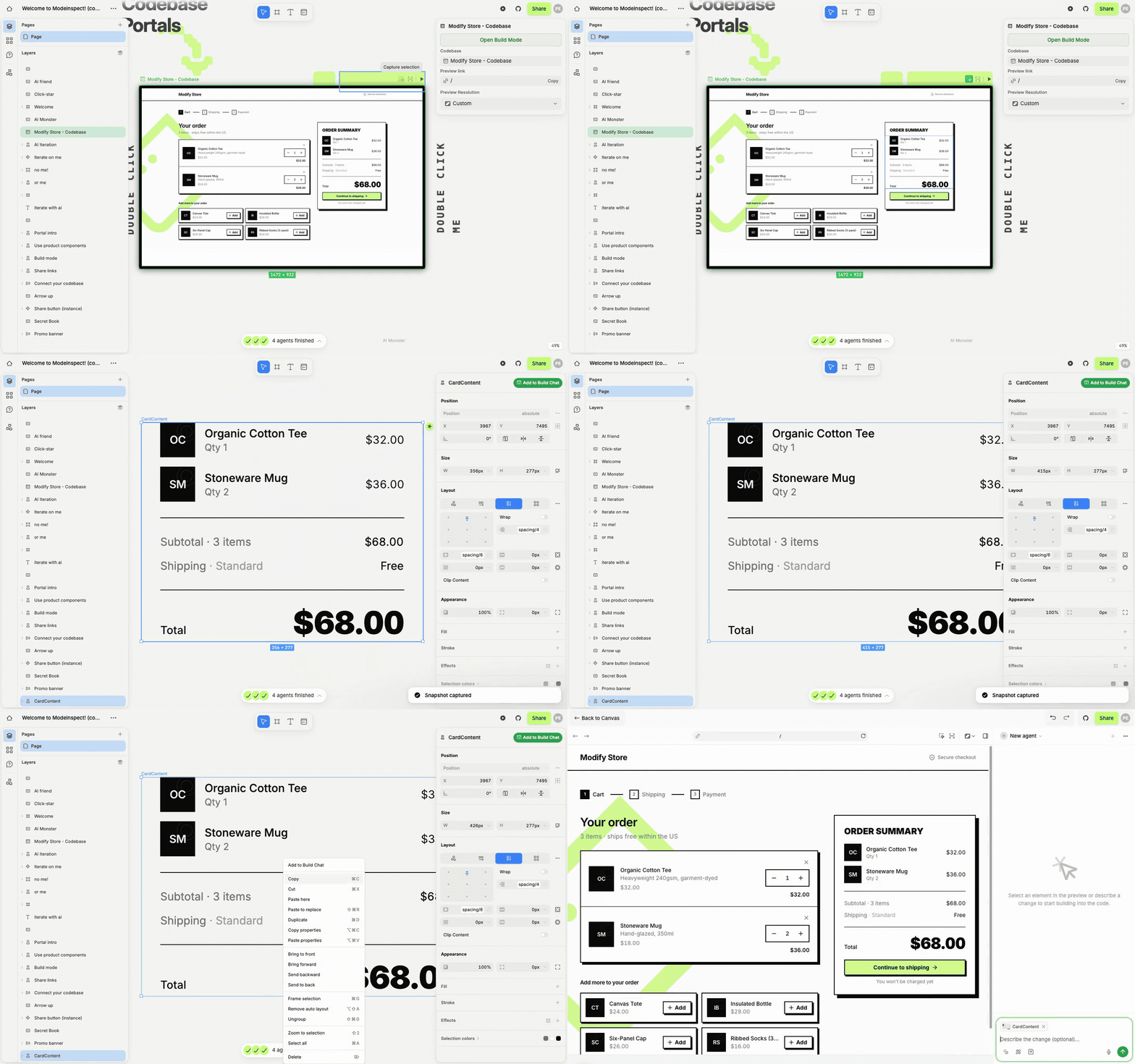
Start on a Portal. Capture page or Capture selection puts the screen, or one part of it, on the canvas as real layers. Each layer keeps a pointer to the component and file it came from. See Capture a live page or selection.
Edit the capture like any other frame: move and resize layers, change text, pick a fill from your design tokens, adjust the layout in the design panel. You do not have to be exact. The agent reads the difference between the capture and the code.
Right-click the frame and pick Add to Build Chat. Build Mode opens with the frame above the message field as a Source frame chip. The element it came from is outlined on the stage. Send with an empty field and the agent gets the instruction "Apply this frame's design changes to its source code." Or type what matters and what does not. See Attach a frame to the build chat.
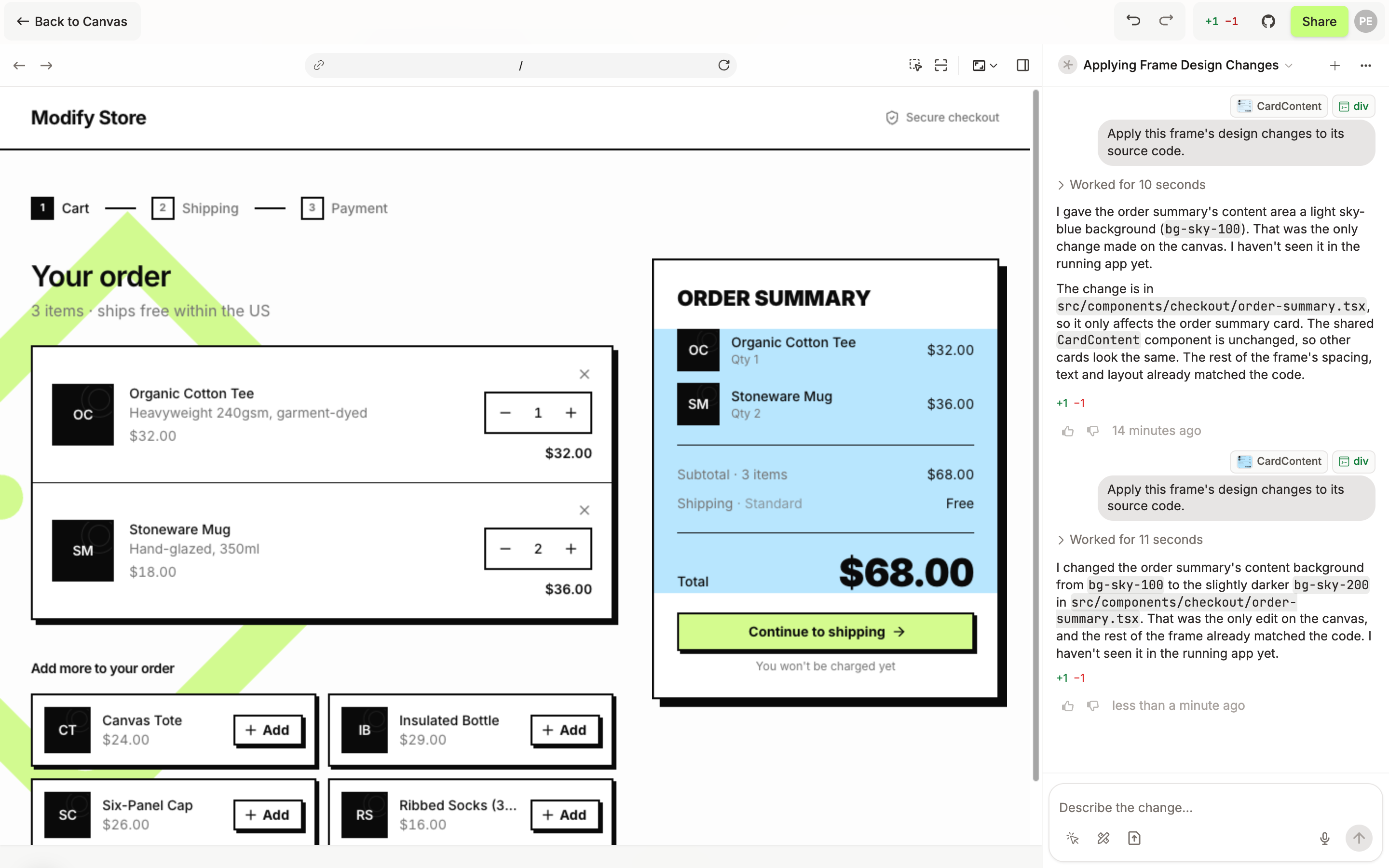
The agent edits the source file. The page on the stage reloads with the change, and the reply names the file and shows how many lines changed. From there you review the code changes and open a pull request.
What it does not do
A frame you drew has no source. The agent needs to be told where it goes, see Attach a frame to the build chat.
The agent does not copy pixels. It changes the code, so the result uses your codebase's own classes and tokens.
Images you attach are references for the agent, see Attach images to the build chat.