A capture copies a page, or one part of it, from a Portal onto the canvas as a frame of real layers. Capture when you want to redesign a screen that exists, rather than draw it again.
Before you start
A canvas with a Portal that shows its page. The capture buttons stay off while the app is starting.
Steps
Click the Portal to select it. The toolbar above it shows Capture selection, Capture page, and Open preview.
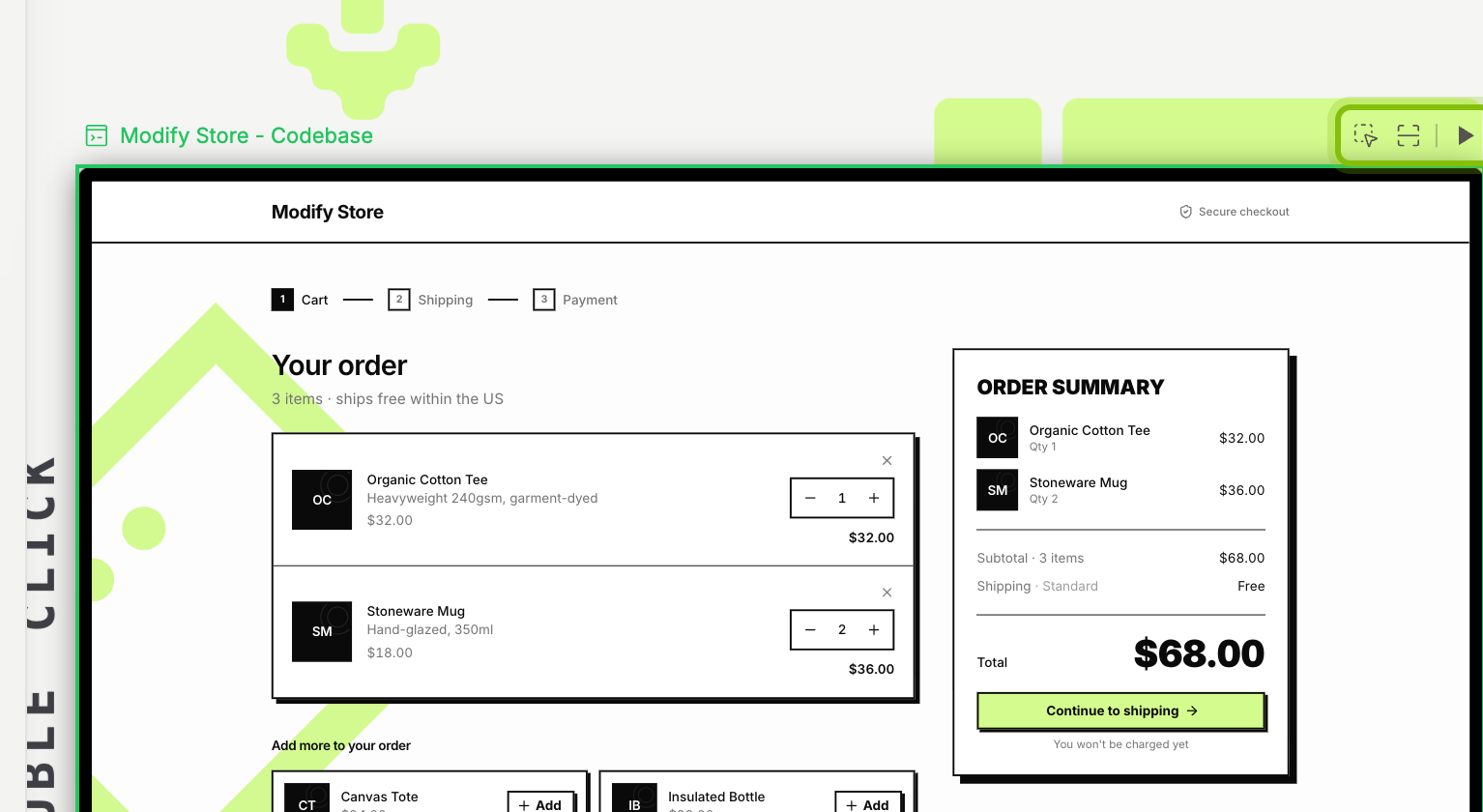
Click Capture page to capture the whole page. The toast reads Capturing…, then Snapshot captured, and the canvas moves to the new frame beside the Portal.
Click Capture selection to capture one part instead. The button stays lit, and the parts of the page get an outline as you move over them.
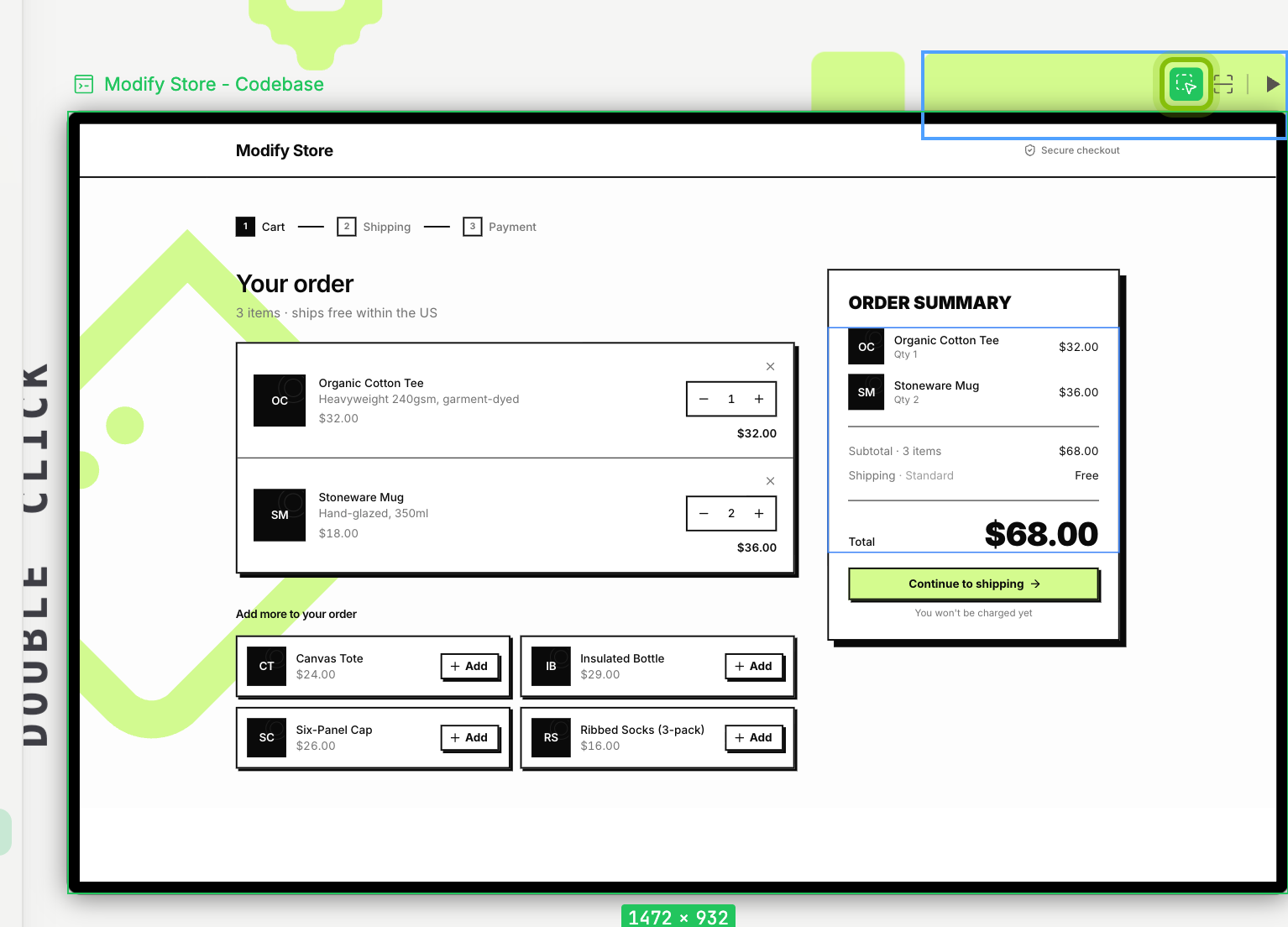
Click the part you want. It lands beside the Portal as its own frame, named after the component it came from, with the toast Snapshot captured. Press
Escto put the tool away.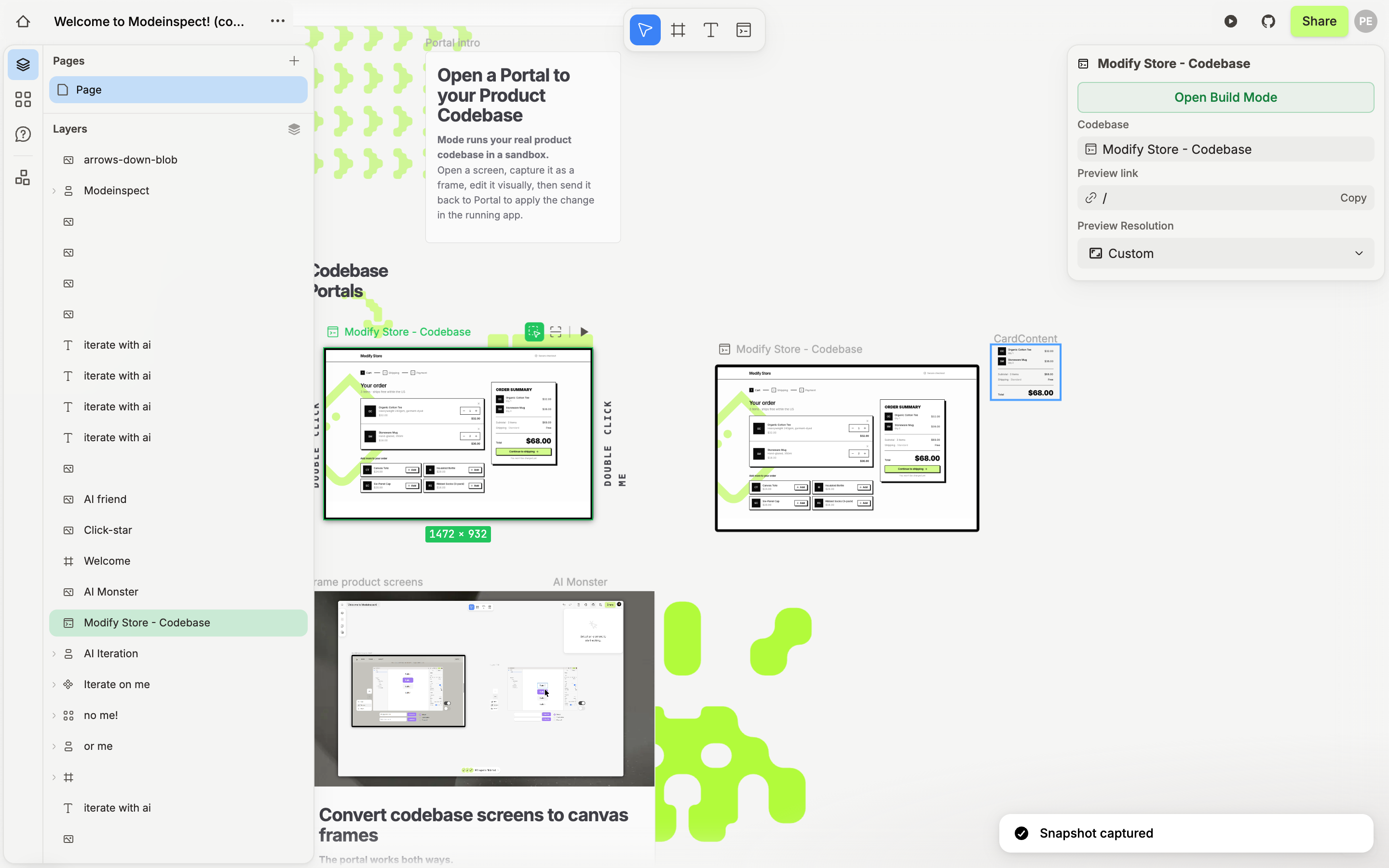
You now have a frame you can edit with the canvas tools, the Layers panel, and the design panel. Each layer in it keeps a pointer to the component and file it came from. That is what lets Build Mode take your changes on the frame back into the code later.
Tip: Hold
⇧while you click with Capture selection to keep capturing without the canvas moving to each new frame. The toast counts them up.
Capture from Build Mode
The same two buttons sit at the right of the page's address bar in Build Mode. Capture selection is ⌘ S and Capture page is ⇧ ⌘ S. While the selection tool is armed, the bar shows Area capture with an × to leave it. Each capture lands on the canvas with the toast Capture added to canvas and a Show button that takes you to it.
If it does not work
Capture page is greyed out: the page is still starting, or the canvas's pull request is merged or closed. Wait for the page, or open a new canvas from the branch.
"Capture failed": the page went away between the click and the capture. Click Capture page again once the Portal shows the page.
The capture shows "Resolving components": the capture is still matching its layers to your components. Wait for the badge to go, then edit.