
Frames copied in Figma paste onto the canvas as editable layers: auto layout, text, fills, strokes, and vectors. Use it to put an existing design next to your live app.
Steps
In Figma, select the frames and copy them with
⌘ C.On the canvas, press
⌘ V. Connect Figma to include assets opens.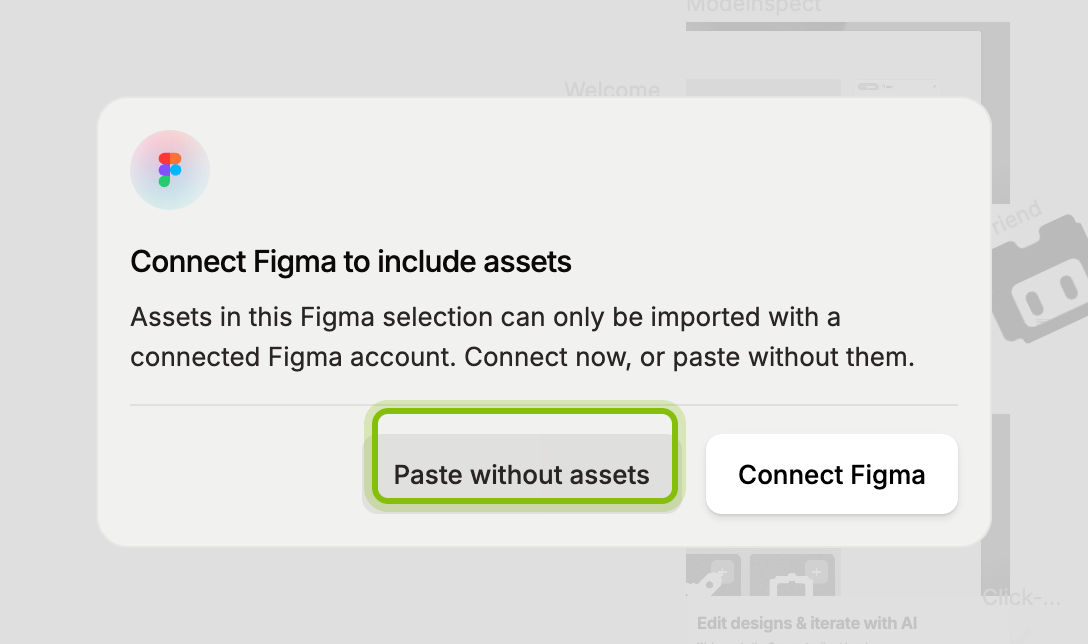
Click Paste without assets. The design appears at the center of your view, selected. With a frame selected, it is pasted into that frame.
What assets are
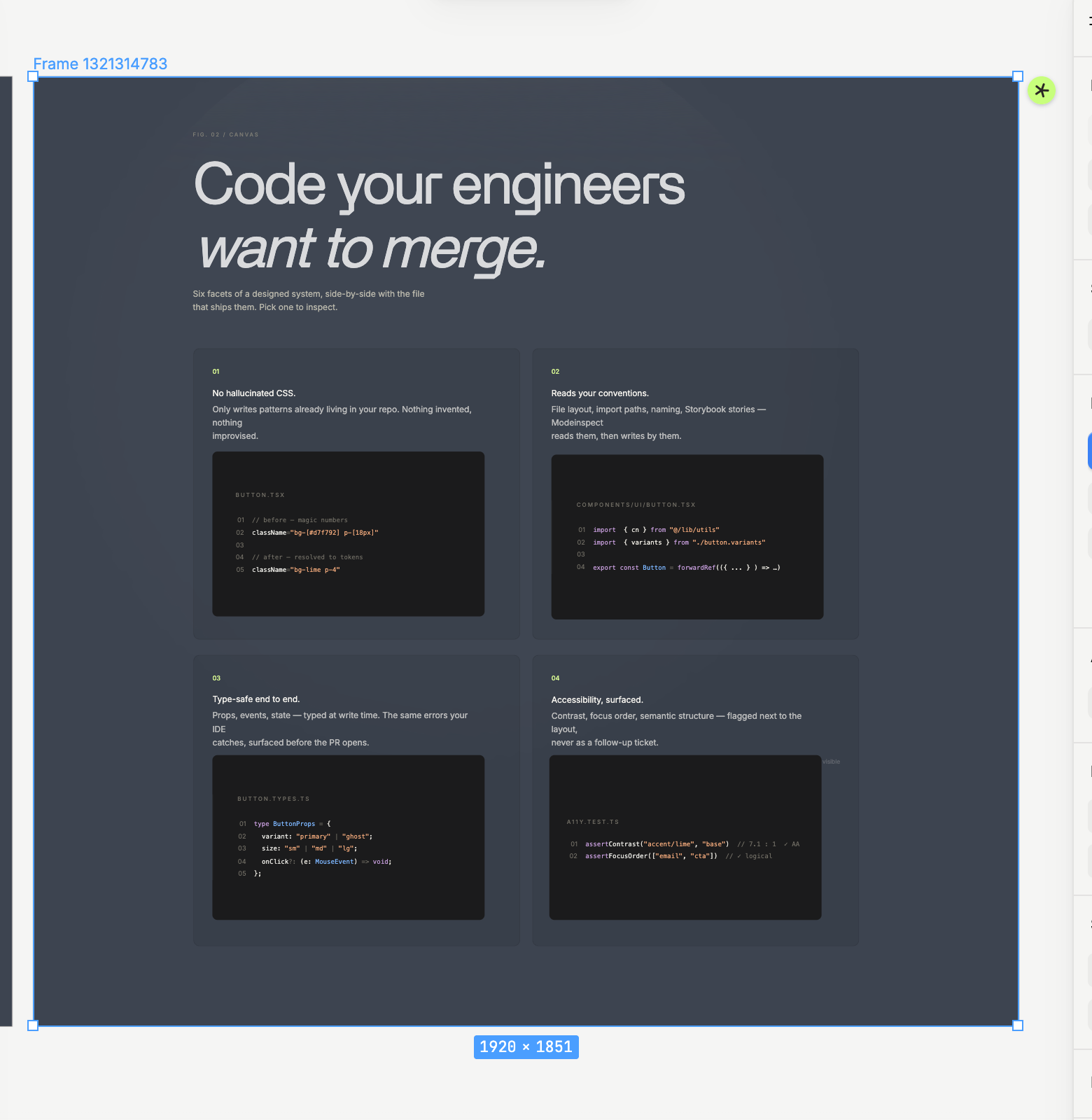
Assets are the images in your selection. The Figma clipboard carries layout, text, colors, and vectors, but not the pixels of images. They come from Figma and need your account connected. With Paste without assets, every image area stays empty. Once Figma is connected, the images load into the frames you pasted earlier.
Connect Figma
Connect Figma in the dialog opens a Figma sign-in window. Approve the access there, and you land back on the canvas, where the paste continues with its images. Later pastes skip the dialog.
The connection is yours and is managed under Integrations in your settings, when the Figma integration is turned on for your organization, see Connect Figma.
Paste a Figma link
A link copied in Figma with Copy link to selection can be pasted too. It opens Connect Figma to import: a link needs a connected Figma account. After you connect, Importing from Figma… shows until the selection lands on the canvas.
What converts and what does not
Auto layout (direction, gap, padding, alignment, hug and fixed sizes), solid and gradient fills, strokes, shadows and blurs, corner radii, rotation, and text with mixed styles come through. Vectors and icons arrive as vector layers. Component instances arrive as plain frames with the content they showed in Figma.
Masks are not applied: masked content shows in full.
Auto layout wrap, min and max sizes, and layout grids are not read.
Variables and styles are not linked: the layers hold plain values.
Constraints and prototype links are dropped.
Instances are not linked to your codebase's components, see Place components from your codebase.
If it does not work
Nothing is pasted: the clipboard holds something other than Figma layers. Copy the layers in Figma again.
The dialog closed and nothing was pasted:
Escor a click outside the dialog drops the paste. Press⌘ Vagain.That Figma selection is empty or unavailable: the link points at nothing your Figma account can open.
Figma images couldn't be loaded: Figma did not return them, for example a deleted image or a library fill. Those areas stay empty.