
The Layers panel lists everything on the current page as a tree. Use it to reach a layer that is hard to click on the canvas, to hide one while you work, or to see what sits inside a frame.
Steps
Click the Layers tab in the left rail. The list shows the top-level layers of the page. Frames and components with children have an arrow in front of them.
Click a layer to select it. The canvas selects it too, and selecting on the canvas highlights the row.
⇧click selects a range.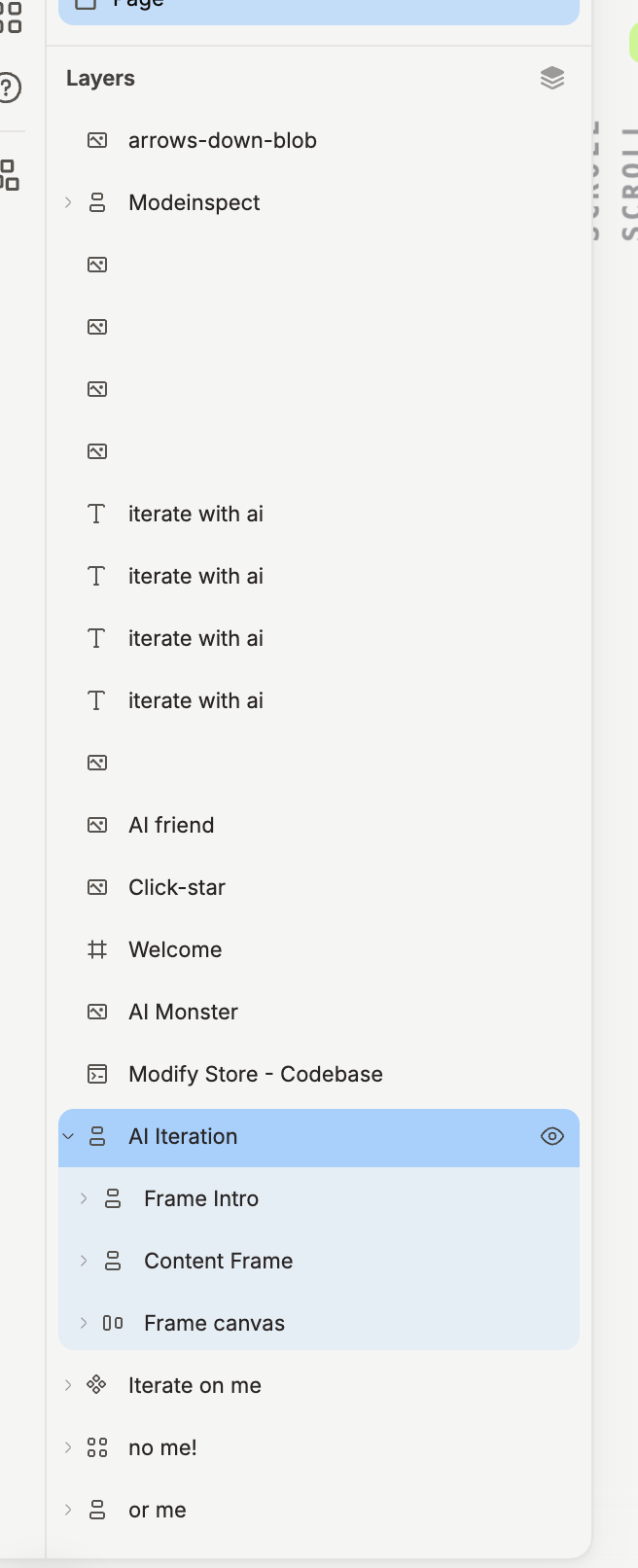
Click the arrow in front of a layer to expand it. The button next to the Layers heading collapses every layer again.
Hover a layer and click the eye to hide it. The eye stays visible until you click it again to show the layer.
Drag a layer to move it above or below another, or onto a frame to nest it inside.
Right-click a row for the same menu as on the canvas, with Rename added near the top. With a layer selected, Enter steps into its children and ⇧ Enter back out to the parent. Canvas controls and keyboard shortcuts lists the rest.
Layers belong to the page you are on. Switch pages from the Pages list above, see Organize a canvas into pages.
If it does not work
A row is dimmed but its eye is open: a layer above it in the tree is hidden. Expand upward and show the parent.
A layer will not drag: layers inside a component instance stay where the component puts them.
A Portal has no eye: a Portal is a live page and cannot be hidden.