
Your first session ends with a canvas open on a running app. Start with the demo codebase to see how Modeinspect works before you connect your own.
Use a desktop browser.
Steps
Open app.modeinspect.com and pick a way to sign in: Continue with Google, Continue with GitHub or Continue with Email. With email, fill in Email, Password and Confirm Password, then click Sign up.
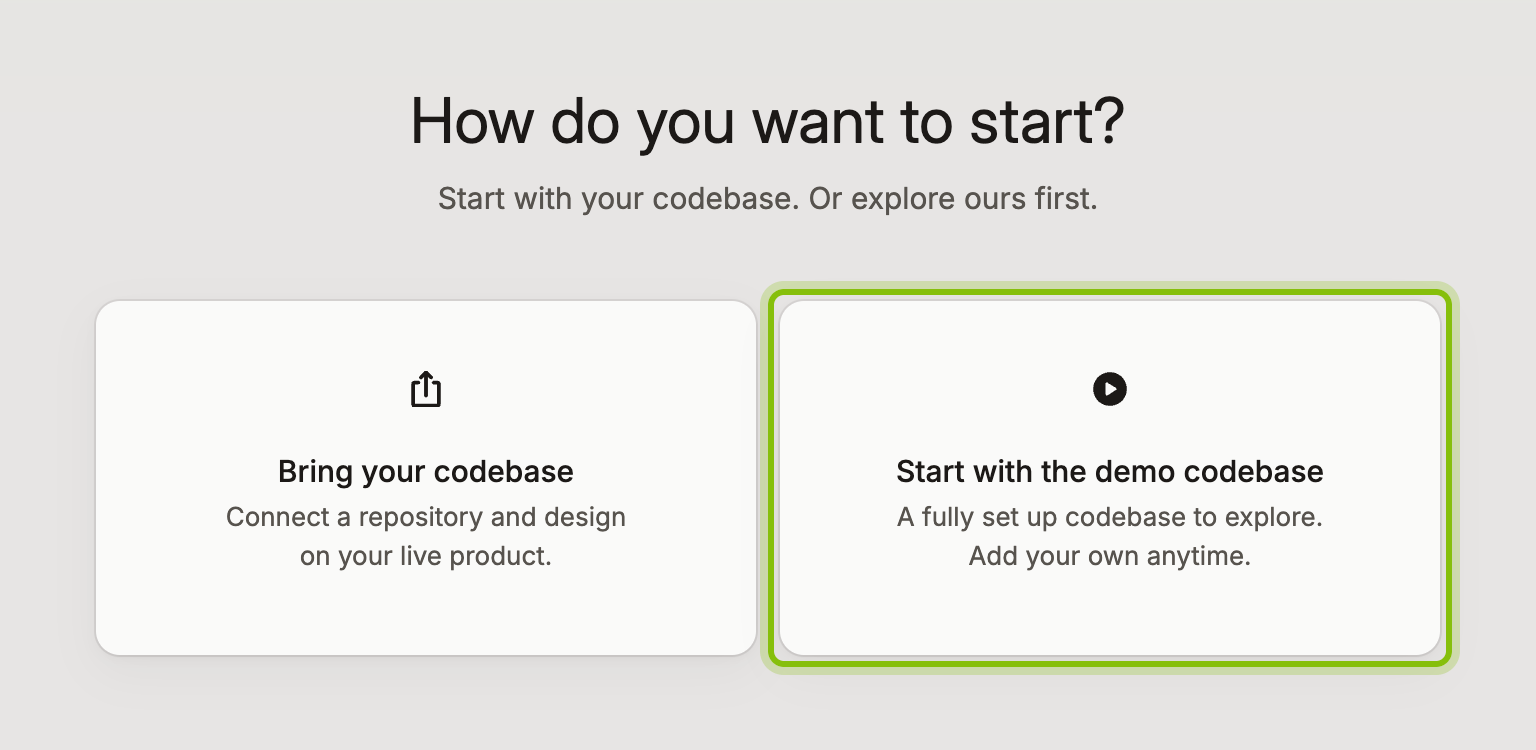
Go through the onboarding. It ends on How do you want to start?.
Choose Start with the demo codebase. The demo canvas opens. Bring your codebase takes you to Codebase Setup instead; see Connect a GitHub repository.
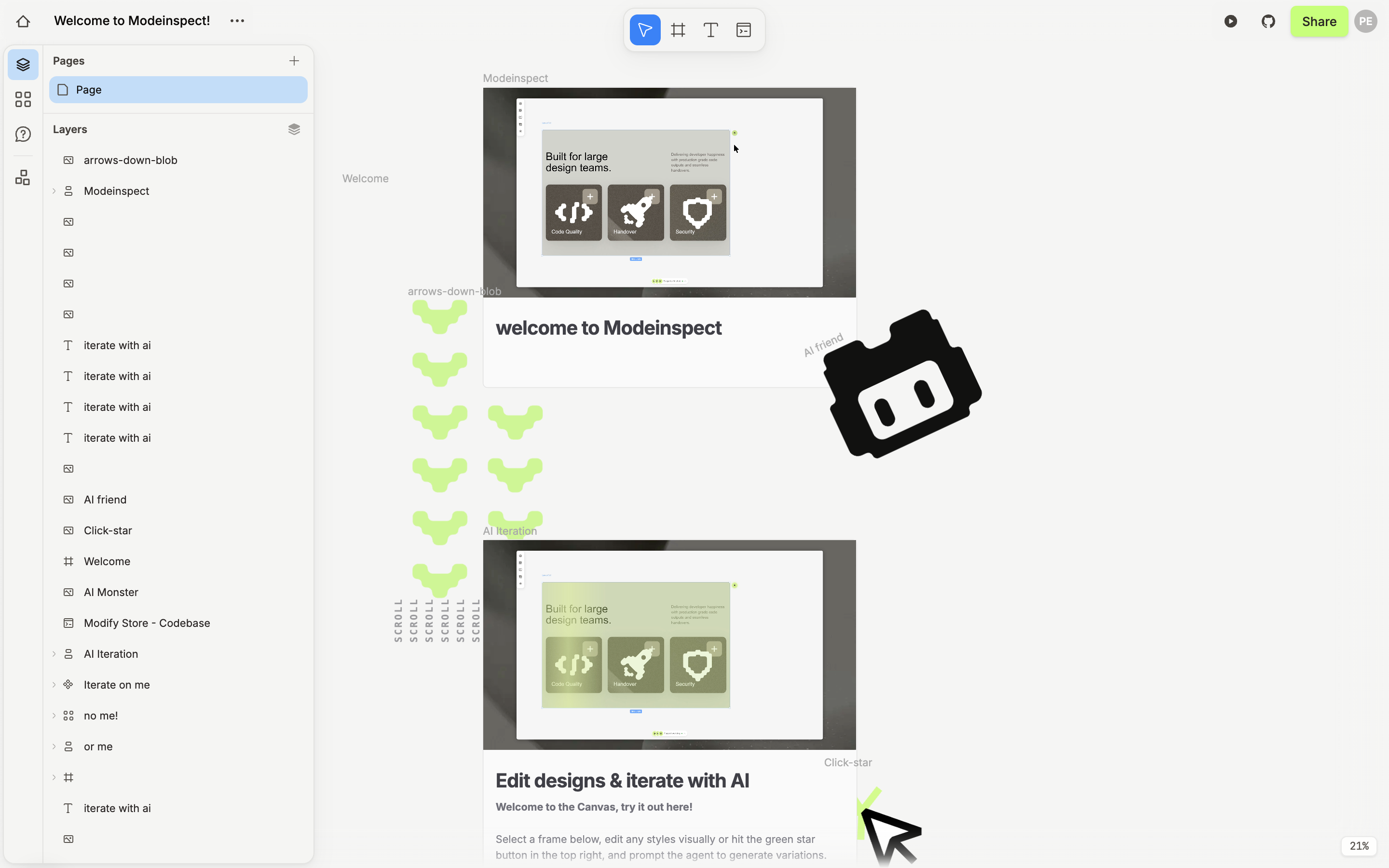
You now see the demo canvas, Welcome to Modeinspect!. It is a guided tour laid out top to bottom. It starts with a welcome and a frame to iterate on with the agent, then a Portal running the demo shop, then components, Build Mode and sharing. Press ⇧ 1 to fit the whole tour on screen, or ⇧ 2 to zoom to what you selected. Hold Space to pan. Canvas controls and keyboard shortcuts lists the rest.
Your first time in Build Mode
The first time you open Build Mode, on any canvas, two cards show you around. Each one shows once.
Your building agent sits above the build chat's message box, and the stage dims until you act. Send a message or click Got it.
After the agent's first reply, Bring your app back to the canvas opens under Capture selection in the address bar. Click Capture to pick a part of the page, or Maybe later. The toast for that first capture, Capture added to canvas, stays until you click it or leave Build Mode.
Where things are
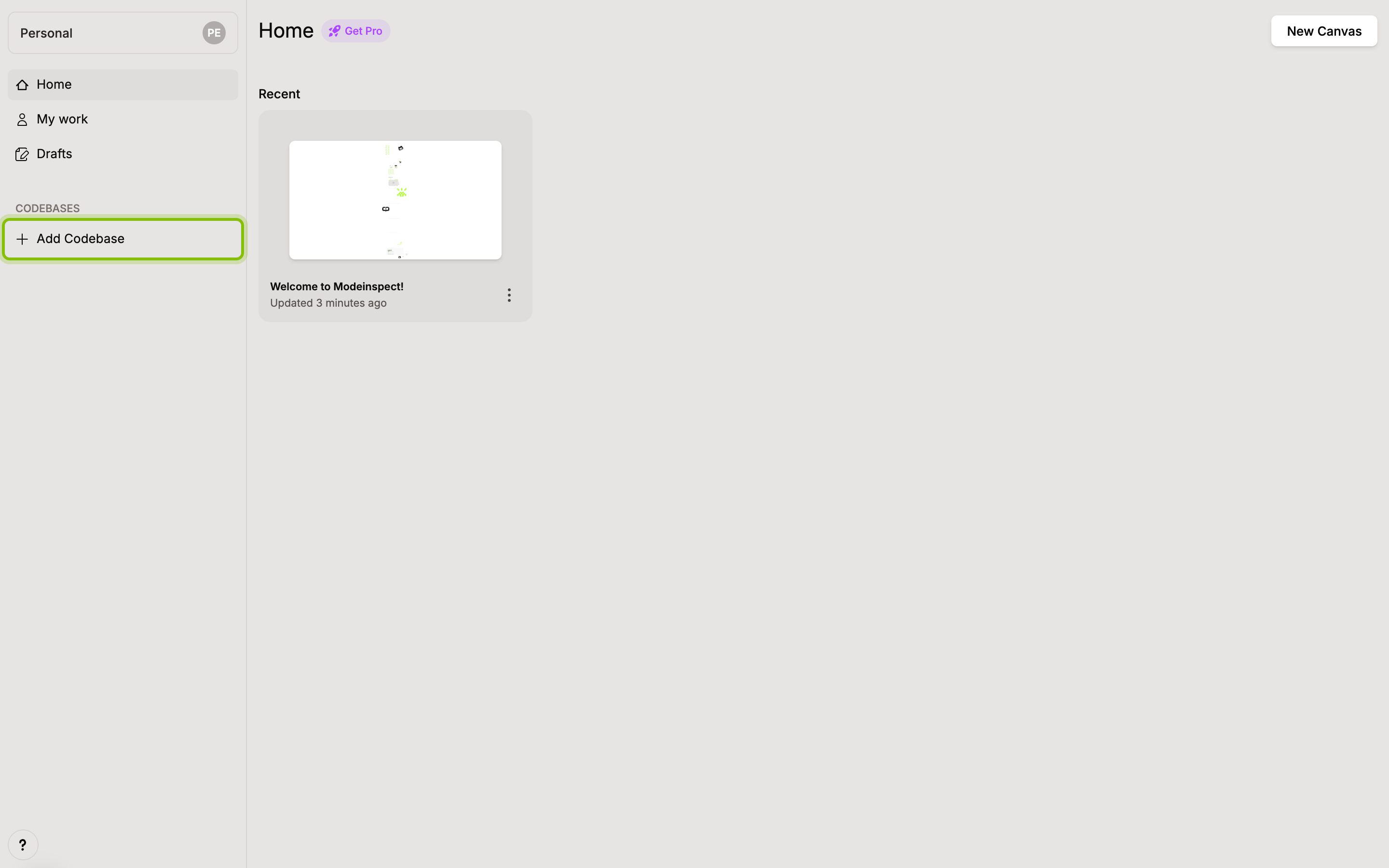
The sidebar on the left is the same on every page.
Home lists your recent canvases. My work lists the ones you created.
Drafts holds canvases that have no repository yet.
CODEBASES lists each connected codebase; Add Codebase starts setup for a new one.
The question-mark button at the bottom opens Help, the in-app assistant that answers from these articles.
If it does not work
"We couldn't finish setting up your workspace.": click Try again.
You land on Before you dive in again: the onboarding answers were not saved. Fill them in once more and click Continue.