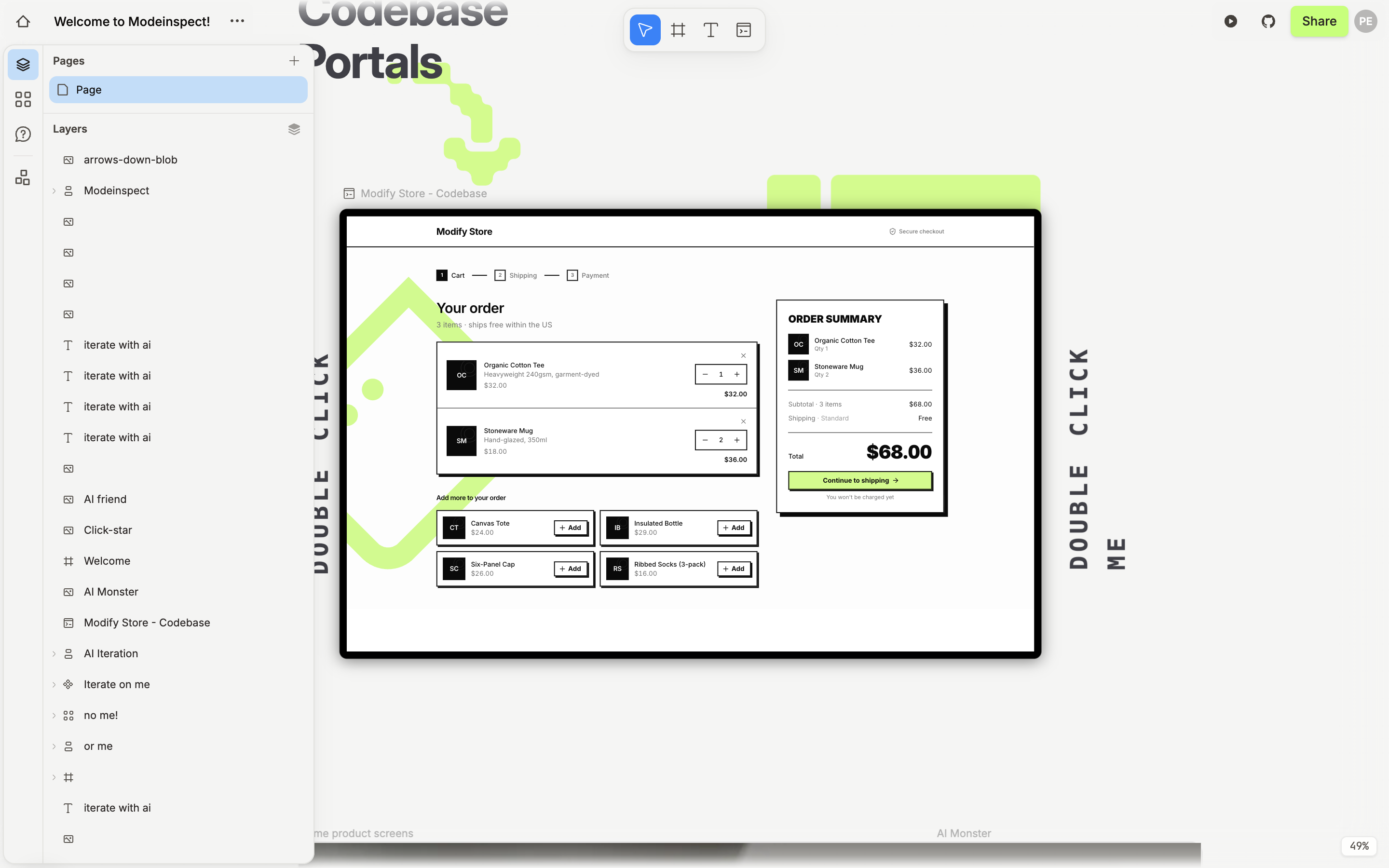
A Portal is a frame on the canvas with your real app running inside it. It shows one page of the app, on the canvas's branch, in a dev environment Modeinspect hosts for you.
How it fits
Every new canvas starts with one Portal on the app's start page. You add more with the Portal tool, P, one per screen or route you want next to each other. Each Portal has its own preview resolution, so the same page can sit on the canvas as Mobile and Desktop at once. See Add a Portal to the canvas.
The page inside a Portal is live. Select the Portal and click Open preview to browse the app in a window over the canvas, with a back button and an address bar. Close it and the Portal stays on the page you reached.
A Portal is the source for captures. Capture page puts the whole page on the canvas as real layers, and Capture selection puts one part of it there. Every captured layer keeps a pointer to the component and file it came from, which is what lets Build Mode write a change on that frame back into the code. See Capture a live page or selection.
While the app starts, the Portal is a dark frame with a spinner. Capture page and Open portal in its right-click menu stay greyed out until the page is up.
What it does not do
You cannot restyle a Portal or the page inside it with the canvas tools. Capture the part you want and edit the capture.
A Portal shows one codebase: the one the canvas belongs to.
A Portal is not a preview link. To share the page, use the Preview link row in the design panel or Share in the header.