A new Portal opens your app's start page on the canvas. Add one when you want another screen next to the ones you have, or the same screen at another resolution.
Before you start
A canvas of a codebase whose setup has finished. Every canvas starts with one Portal, so this is only for the second one on.
Steps
Press
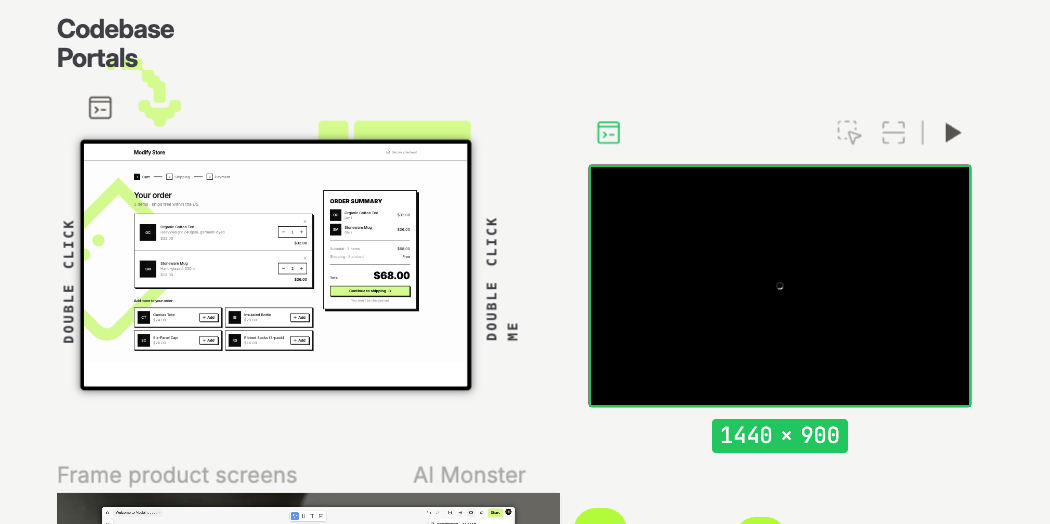
P, or click Portal in the toolbar. The cursor becomes a crosshair.Click where the Portal should go. A dark frame with a spinner appears at that point while your app starts, with its capture buttons greyed out.
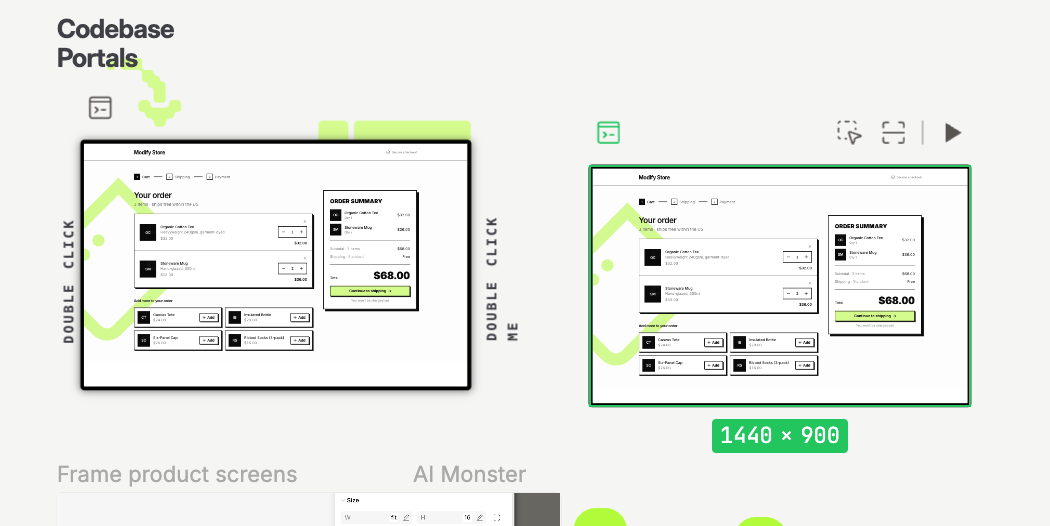
Your app's start page appears in the frame when it is ready. Nothing on the Portal can be captured before that.
With the Portal selected, pick a size under Preview Resolution in the design panel: Mobile, Tablet, Laptop, Desktop, or Large desktop. The page reflows inside the Portal. A Portal you resize by hand shows Custom.
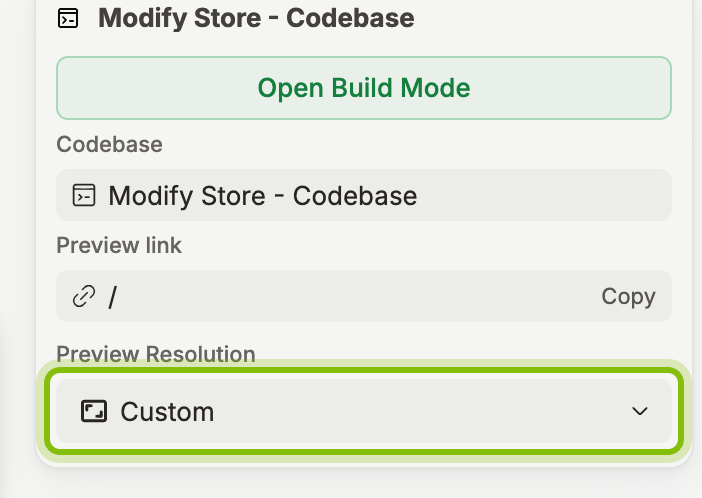
The rest of the panel: Open Build Mode opens the Portal in Build Mode, and Codebase names the codebase it runs. Preview link copies a link to this page that others can open.
Open another page in the Portal
Select the Portal and click Open preview in the toolbar above it, or right-click it and pick Open portal. The page opens in a window over the canvas with an address bar. Browse to the page you want and close the window. The Portal now shows that page.
Every Portal starts with the codebase's name. Double-click the name above a Portal to rename it, so the Layers panel reads "Checkout" rather than a second "Modify Store - Codebase".
If it does not work
The frame stays dark with a spinner: the dev environment is still starting. Open the canvas again in a minute.
"Couldn't load dev server": click the Portal to retry. If it fails again, the codebase's start scripts need a look, see Add start scripts to a codebase.
"This app redirected to … usually to sign in": the page wants another site, for example a sign-in provider. Click the Portal to continue in a new window.
Open portal and Capture page are greyed out: the page has not finished starting.