The canvas has four tools and the shortcuts below. Mac keys are shown. On Windows, press Ctrl for ⌘ and Alt for ⌥.
Tools
The toolbar sits at the top of the canvas. Hover a tool to see its key.
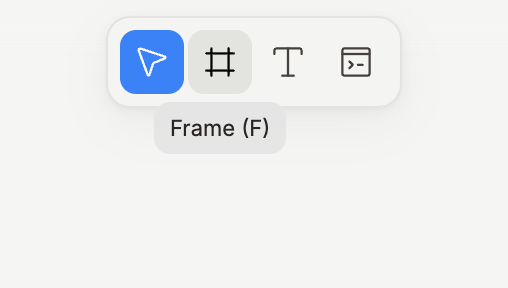
Tool | Key | What it does |
|---|---|---|
Select |
| Select, move and resize layers. The default tool. |
Frame |
| Draw a frame. |
Text |
| Draw a text layer. With one text layer selected, |
Portal |
| Draw a Portal, a live page of your app on the canvas. |
| Go back to Select and drop the selection. |
Zoom and pan
Keys | What it does |
|---|---|
| Zoom in |
| Zoom out |
| Zoom to 100% |
| Zoom to fit everything on the page |
| Zoom to the selection, or to the whole page when nothing is selected |
hold | Pan |
hold | Zoom in on the point you click. Hold |
arrow keys | Pan, when nothing is selected |
The zoom level shows in the bottom right corner of the canvas.
Selection
Keys | What it does |
|---|---|
| Select the children of the selected frame. On a single text layer, edit the text. |
| Select the parent of the selection |
| Select the next or previous sibling |
| Select every top-level layer on the page |
arrow keys | Nudge the selection by 1 px. |
| Drop the selection |
Editing
Keys | What it does |
|---|---|
| Undo and redo |
| Copy, cut, and paste |
| Duplicate |
| Delete |
| Frame selection: wrap the selected layers in a new frame |
| Ungroup: dissolve the selected frame and keep its children |
| Add auto layout to the selected frame |
| Remove auto layout |
| Copy the fill, stroke, radius, layout and opacity of one layer and paste them onto another |
| Paste to replace: swap the selection for what you copied |
| Set the opacity of the selection: |
The right-click menu
Right-click a layer on the canvas or in the Layers panel. Items that do not apply to the selection are greyed out, so the menu keeps the same shape.
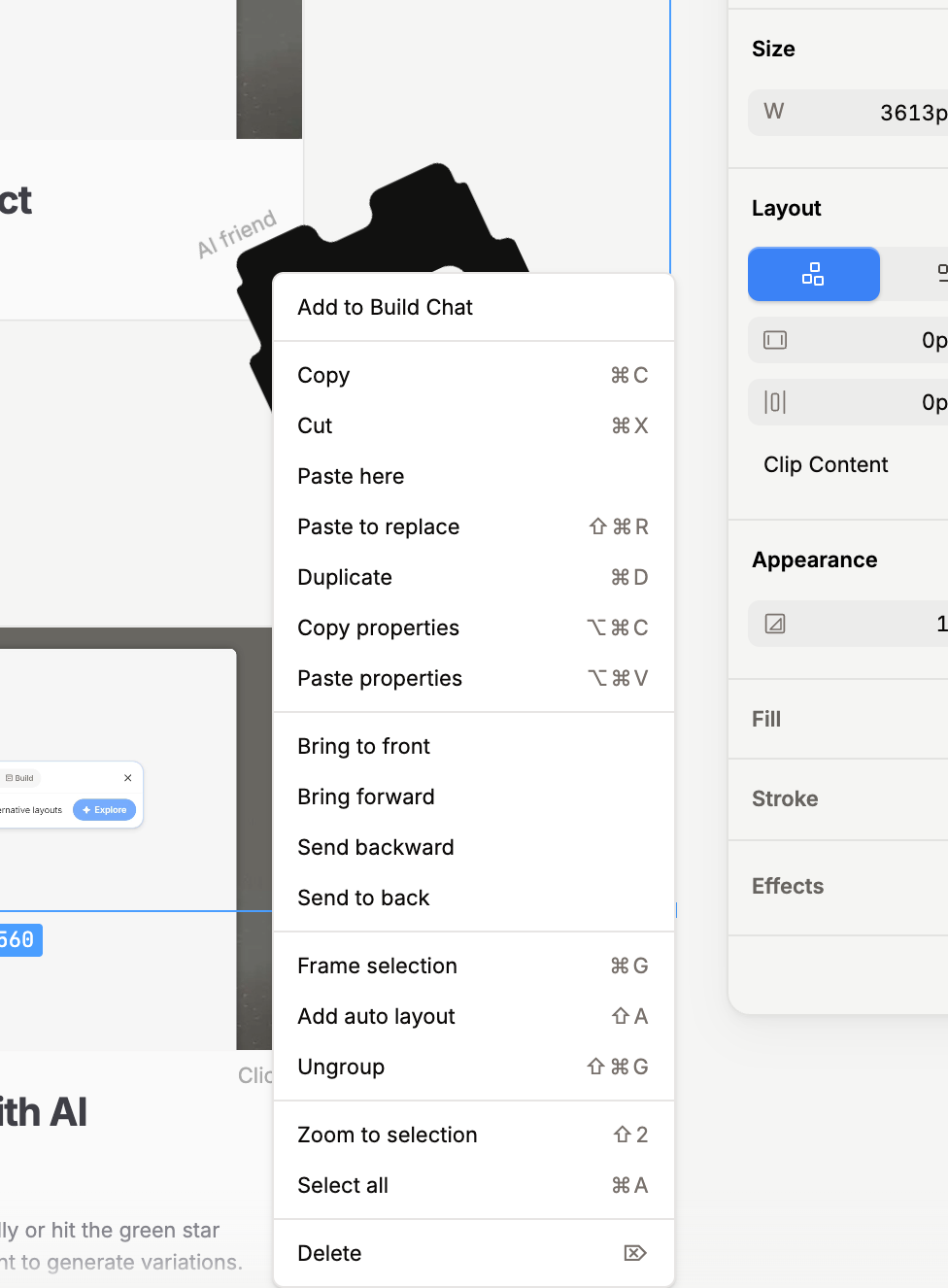
Add to Build Chat sends the selected layers to the coding agent's chat. It is the first item and is greyed out on a Portal.
Copy, Cut, Paste here, Paste to replace, Duplicate, Copy properties, Paste properties.
Bring to front, Bring forward, Send backward, Send to back.
Frame selection, Add auto layout or Remove auto layout, Ungroup.
Zoom to selection and Select all, then Delete.
Some layer types add their own items under the clipboard group. An image gets Crop image and Remove image. A Portal gets Open portal and Capture page. In the Layers panel, Rename comes right after Add to Build Chat.
Right-click on empty canvas for the page's own menu: Paste here, Add page, Select all, and Zoom to fit.
The header
The … button next to the canvas name opens Rename, Duplicate canvas, Sync tokens, and Delete canvas. Sync tokens appears when the canvas holds design tokens, see Use your design tokens on the canvas. Delete canvas asks you to confirm and cannot be undone.
On the right, Open preview opens the Portal's page in a browser window, and Share opens the sharing controls. The GitHub button between them holds the pull request controls for the canvas's codebase. On the demo canvas, which has no repository, it opens Set Up Your Codebase instead.
Hover the top edge of the window for Hide interface, which hides every panel and leaves the canvas. The same button, now Show interface, brings them back. ⌘ \ toggles it too.
Coming from Figma
⌘ Gmakes a frame, there are no groups.⇧ ⌘ Gdissolves one.Zoom in and out with
=and-on their own, and go to 100% with⇧ 0.There are no shape, pen or hand tools: everything on the canvas is a frame, text, an image, a component, or a Portal.